

FAQ
Not seeing what you need?
Try our Video Tutorials here
Download the User Guide here
Or email us at musicmentor@c4edu.com
Initial Level placement is a subjective exercise and your guidance in helping a student find a starting place is valuable. Students will be instructed to prepare a couple of contrasting solos and will be asked to talk about some of their past experiences as a musician. Students are required to take the Initial Level Placement as their first session. It is a 30-minute session.
Here are a few questions you might ask to help with a level recommendation:
- Have you taken lessons in the past?
- Have you studied any solo material, etudes, or method books?
- What ensembles have you played/sung in?
- How long have you been playing/singing?
- What kind (make/model/set-up/etc.) of the instrument are you playing?
- What are your goals for this term and beyond – and are there specific materials or issues that you’d like to work on?
- Are you a music major or a non-major?
If you are unfamiliar with the ABRSM levels (they call them grades), please take a look at the repertoire lists 1-8 and the video examples in our video library.
Students, with the guidance of their mentors, should choose a solo from each of the A, B, and C lists for each level – and will also have an additional free-choice solo (which may be another solo from any of the lists or something completely unrelated). A student should have 4 solos that they are working on during the term along with any technical exercises, method books, etc. that you might recommend.
After the initial level placement, you will need to fill out the form for the student in your portal under Documents. You must be logged in to your portal.
Please see the video tutorial on Initial Level Placement in your portal under Documents. Here is the direct link to the page but you must be logged in to your portal on C4EStudio to access it.
If you are a student or a mentor taking a course with American River College and want to study Jazz. Please reference this document: Levels for Jazz Applied Students
The ABRSM Shop has digital downloads of repertoire for specific levels and lists at a reasonable price. Additionally, it sells publications that contain scores from specific levels (Grades).


- Go to Session List
- Select the Icon under Availablity
- Select New
- Under Type: Choose 'Day of the Year' (instead of Weekly)

- Fill out the remainder of the form
- Select your Date From and To (which can be the same date if you only want to do something one day)
- Choose your time range
- Select Save and Close.
- If you just want to delete (or close) one of the days you can select the check box and delete it, or open it back up and close it.

Think of your availability as if they are your office hours.
From the top of your mentor area, the tab Session List (create a new session by selecting NEW, then fill out each tab on the left.
After you SAVE,/CLOSE you will see the Session listed with an Availability icon, you must select this for each and every session you create to add your availability:

To create a new availability, select NEW
Use WEEKLY if you know you are going to be available every week on a certain day for a particular time. For example every Sunday from 9 AM - 12. 

Use DAY OF THE YEAR if want to create your availability for every day for a certain amount of time. When you Save/Close, you are able to delete the particular days you may not be available:


Here is a video tutorial:
Closed means that you can close that time slot so students will not be able to book an appointment. You can choose to use closed instead of deleting the availability, if you think you might want to open it again at another time.

No, the mentor is a guide to help the student progress. If the student is enrolled in an institution, that institution creates the curriculum that the student must fulfill in order to pass the course, these things may include (but are not limited to) logging their sessions, participating in forums, leveling up, a jury, etc.
No, mentors are considered 'free lancers' or 'contractors' with C4E. Mentors will provide a W9 to us and will file their own taxes. C4E takes 10% of earnings for maintenance and support.
Yes, Mentors change or addmore than one Video
- Log in to c4estudio.com
- Go to Profile
- Go to Description
- Select the tab ‘Text’ on the right side and add the YouTube or Link below whatever might be there

What it will look like on the front page

When you are logged into your portal, go to Profile > Description
Click on the Text tab and add the URL to YouTube Vimeo.

First, ensure you have the correct timezone in your mentor area > go to your name, select the dropdown, and choose Settings.

Under Global > select the drop-down and start typing in the city that is equivalent to your timezone from the list below:

CLOSE to return to your calendar.
From the dropdown, select the correct session, then select a date to view the time slots. The system breaks up the timeslots based on what you added in the session and your availability.

If the time slots are not in your timezone, then go to Mentor Search (top right of the screen) - as if you were a student searching for yourself.
- Find your name
- Choose the correct session
- Change the Timezone to your timezone

Yes, you and the student will both get an email notification.
Sleep time is the time that is added in between each session.
If you are using the basic version of Zoom (which is what the C4E Zoom is) then you'll need to add 15 minutes of Sleep Time between each session, because the basic version of zoom limits when you can start the next meeting by 10 minutes.
Here is a 30-second video showing you how to change the Sleep time.
A mentor is a professional resource for the student who can act as a coach on the required solo repertoire but may also offer additional materials, including technical exercises and scale studies, warm-up and daily routines, additional etude and method books, and any other variety of materials that the mentor feels would be beneficial for the student to encounter. Mentors may also offer group warm-up sessions, masterclasses, solo performances, etc. In the mentor portal.
We designed our levels around the ABRSM curriculum because of its comprehensive and globally recognized system. ABRSM has given over 21 million exams - with 650,000 assessments in more than 90 countries annually. Our design parallels their new online performance certificate, which requires the performance of 4 solos for each level (grade) for evaluation. Although C4E provides a level-up evaluation, students may also opt to take an ABRSM grade (level) exam using the same materials they are studying in our course. ABRSM exams are independent of C4E and must be arranged by students independently if they wish to have this experience.
If there is no curriculum guide for the student’s discipline, please help the student determine 4 solo-type materials that they can study this term. An example for a jazz guitar student might be memorization of 3 jazz standards (heads)/improvisation and a study of a solo transcription or jazz etude. If the student needs foundational training, you may wish to also consult the ABRSM classical curriculum for appropriate solos that would help in reading, technique, etc. For example, a jazz guitarist who needs note-reading study may benefit from some classical guitar literature (particularly at the lower levels). Students studying instruments and genres not part of the ABRSM curriculum will also need mentor help determining semester repertoire. Please feel free to contact us if you are unsure of what to recommend, need some help, or would like to talk about your student’s situation. We are identifying and writing curriculum where it is missing – your suggestions are very welcome!
You can choose to submit an invoice any time you want, we recommend at the end of each month or quarterly. Please keep track of all your invoices. Note, it may take up to 30 days to process your invoice after you submit it.
First export the spreadsheet that keeps track of all your sessions.
- From your mentor portal
- Go to Account Status:
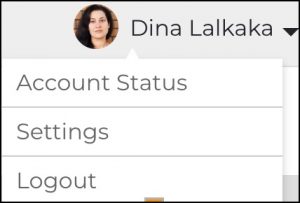
Export a Session Summary by month(s)
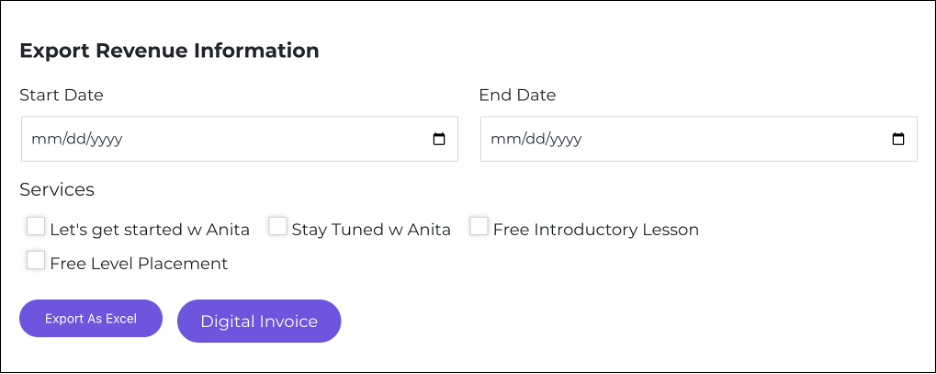
- Select the Start Date and End Date. We recommend you send an invoice quarterly (every 3 months)
- Select all the check boxes for the session.
- Select the button: Export As Excel:
The spreadsheet will look something like this:

- Ensure the spreadsheet is accurate. Each student gets ONE Initial Level Placement as part of their enrollment. You should add $30 to that session.
- Select the Digital invoice button.
- Fill out the form. Enter the month and year for each entry: When you enter the amount, the Sub-Total and Total will automatically be added up.
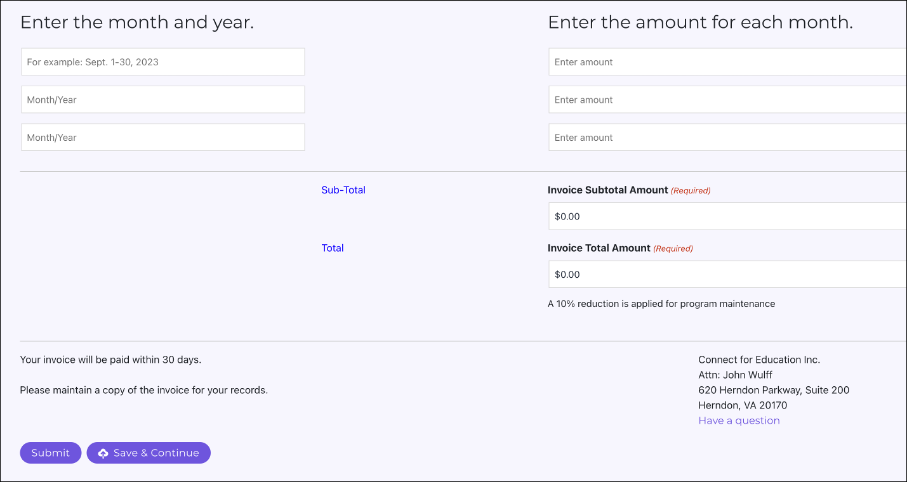
Select Submit, you will be paid Net-30.
Please ensure you keep a copy for your own records.
Get Started With JackTrip Video Tutorials on YouTube
JackTrip is a tool for musicians that enables them to produce music together over common Internet connections. It delivers high-quality sound with minimal time delay so that musicians can keep the beat and stay in harmony. It can make it sound like you are in the same room next to each other, even when you are actually hundreds of miles apart.
If we've set up a C4E JackTrip studio for you, you'll see a Start JackTrip button at the top of your mentor portal:
- To start a session, from your mentor portal, select Start JackTrip
- You will be taken to a JackTrip login page, choose Log In with C4E
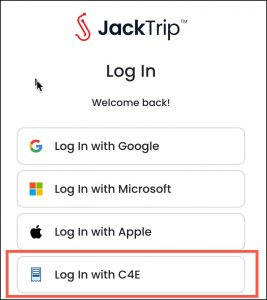
You may have to enter your credentials again.
Submit Consent to use the 3rd party platform.
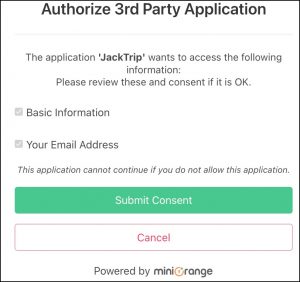
You will be taken to your Studio, select the Join button

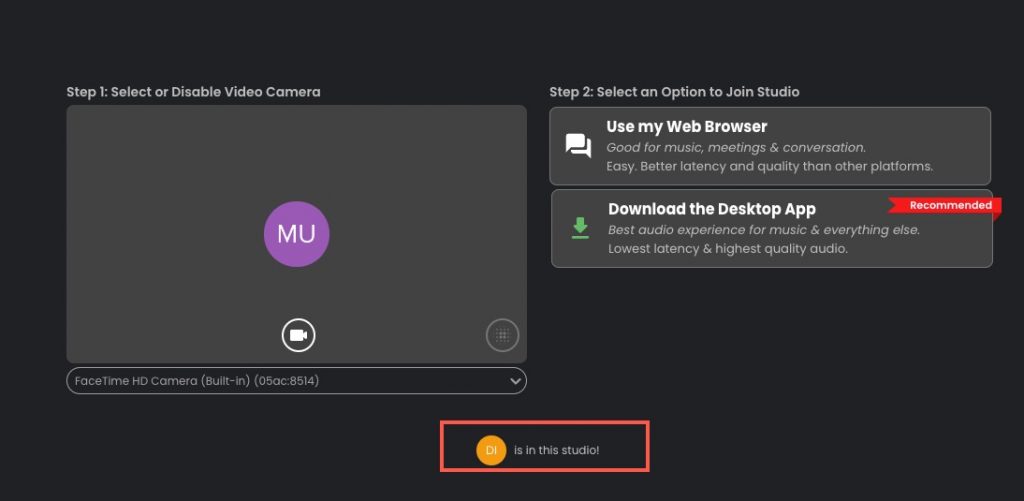
- Choose either: Use My Web Browser or Download Desktop (downloading the desktop app will give you a better experience as far as the audio quality and lowest latency, but you will have to have a headset and good internet.
- Choose your mic and the monitor you want to have sound come from
- Select Join Room
- Once you're in the room, you will see the controls at the bottom of the screen (if you don't see them roll your mouse over the bottom of the screen - from left to right: Audio, Video, Studio, Invite, Share, Record, Chat, More and Leave
- You can invite other participants if desired, but the student will get the Join link in their Mentor Portal (they will have the choice of Zoom or JackTrip, so you'll need to let them know which one to pick.
NOTE: All students will receive the same Join URL so if you are running late with one of your students in the JackTrip studio, the next student could potentially, or inadvertently enter the room. They will be able to see how many people are in the studio so you should probably let them know not to enter until it is only you (you are DI in the picture below)
For Applied Music there is a four-hour limit for each semester, so you'll have to watch your time, but if you like you can set up 60-minute or longer sessions now.
Currently, your students will receive two Start links, one from Zoom and one from JackTrip. If you are going to use JackTrip exclusively, turn off Zoom in your session settings. See this video tutorial
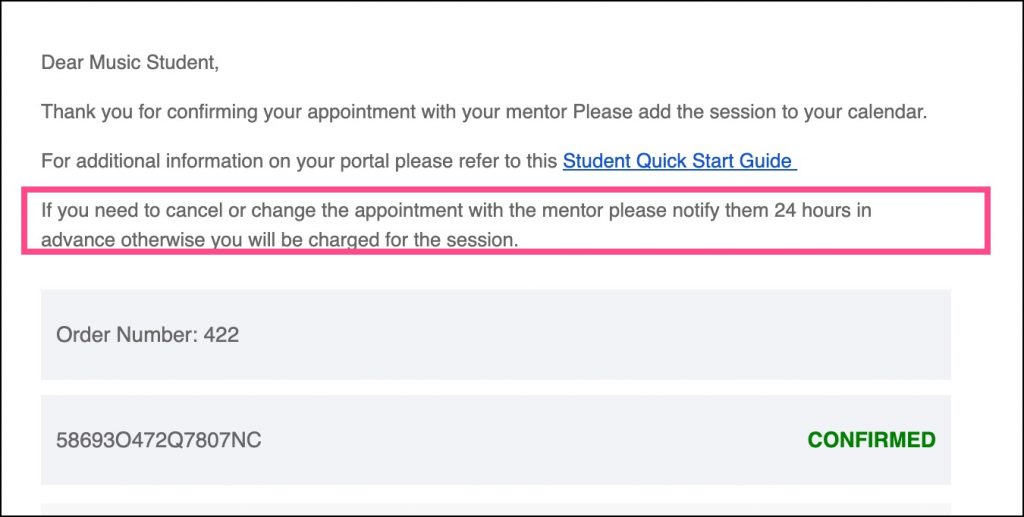
Students must give mentors 24-hour notice before canceling or changing an appointment.
In the email they receive, they are informed of this. Mentors get paid for no-shows.
- Log in to your mentor portal
- Go to Session List
- Select Initial Level Placement
- Go to Settings
- Ensure the Zoom checkbox is checked.